PDF Viewer – Document Viewer
StarEpochTools
4.3113.00 Reviews
- Version
- 1.2.5
- Installs
- 100.00K
- Age Rating
- Everyone
Screenshots
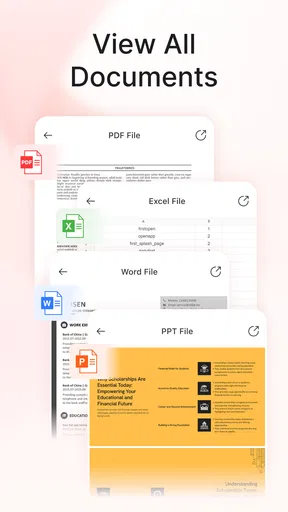
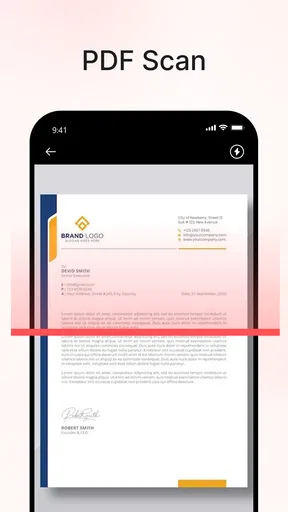
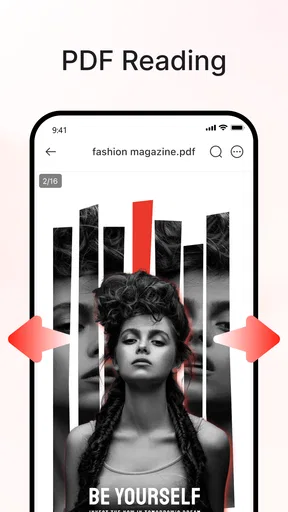
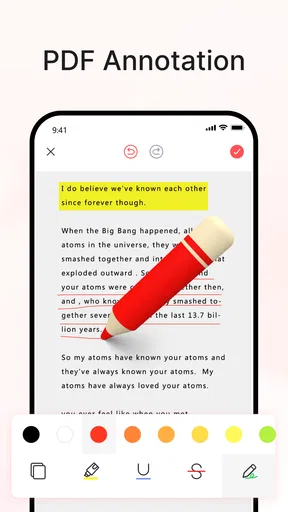
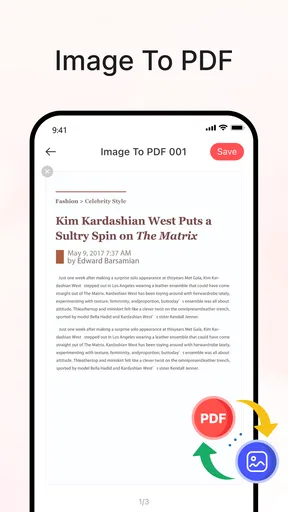
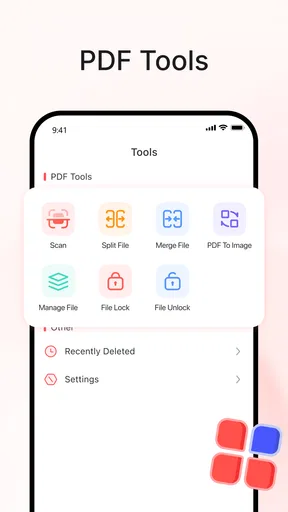
Our Review of PDF Viewer – Document Viewer
 Analysis by Appyee
When I need to open a PDF quickly, I usually do not want a full office suite, a cloud workspace, or a complicated document manager. I want to tap a file, read it comfortably, and get back to whatever I was doing. PDF Viewer – Document Viewer, developed by StarEpoch, is built around that simple need. It is a free tools app for Android, with an Everyone content rating, and its main appeal is straightforward access to files and PDF documents.
I approached it as a practical decision rather than a feature hunt. A small PDF reader can be more useful than a larger productivity app when the job is simply reading a receipt, checking a form, opening a manual, or reviewing a document someone sent in a chat. At the same time, simplicity can become a limitation if you expect advanced editing, collaboration, scanning, or deep file-management controls. My experience with this app is best summed up this way: it is worth considering when opening PDFs is the priority, but it should not be mistaken for a complete document-work platform.
What I looked for before choosing it
My first decision criterion was speed of access. A document viewer earns its place on a phone by reducing the distance between receiving a file and reading it. I wanted to see whether the app felt appropriate for occasional everyday use rather than demanding that I reorganize my entire document collection around it.
The second criterion was focus. Many Android users already have several apps capable of opening PDFs, including browsers, cloud-storage apps, office suites, and messaging tools. Those alternatives can be convenient, but they often bring unrelated functions with them. A focused viewer makes sense if I prefer a separate destination for documents instead of opening them inside whichever app happens to receive them.
I also considered the kind of user who may install it. Someone who reads study handouts, transport documents, invoices, product instructions, or work attachments has a different need from someone who edits contracts or signs forms. The distinction matters because a free viewer can be a good fit for reading while still being the wrong choice for document production.
Finally, I considered switching friction. If an app becomes the default PDF handler, changes how files are opened, or encourages a new browsing habit, replacing it later can be mildly annoying even when the installation itself is simple. The best choice is therefore not just the app with the most functions; it is the one that matches the way you already handle documents.
A focused reader for ordinary PDF moments
The strongest part of PDF Viewer – Document Viewer is its narrow purpose. The store summary presents it as a simple way to access files and PDFs, and that focus is exactly how I would describe its role. I found it most convincing for quick reading sessions where I did not need to modify the document or move into a larger workflow.
Imagine receiving a PDF timetable in a messaging app while standing at a station. I would rather open it in a dedicated viewer, check the relevant page, and close it than wait for a full office application to load a broader workspace. The same applies to a warranty document, a restaurant menu, an instruction sheet, or a school notice. These are small tasks, but they are frequent enough that a clean reading route is valuable.
Another useful situation is separating reading from editing. If I use an office suite for everything, a simple viewing task can feel heavier than necessary. A dedicated viewer can act as a neutral place for reference documents, leaving writing and editing tools for the files that actually need changes. That separation can make a phone feel less cluttered, especially for people who keep many PDFs temporarily.
The app’s current version is 1.1.9, and its presence on Android is already established beyond a handful of installations. It has passed the threshold of over one hundred thousand installs and holds a 4.4 average from roughly three hundred and fifty ratings. I would not treat those figures as proof that it is perfect, but they do suggest that the basic concept has found an audience.
Why the simple approach can be useful
One non-obvious benefit of a dedicated viewer is mental clarity. When I open a document in a multifunction app, I may be presented with editing, conversion, sharing, account, or storage options before I have even read the first page. A focused tool can reduce that distraction. For a person who mainly consumes documents, fewer decisions can be more valuable than a longer feature list.
I also like the possibility of using it as a temporary inbox for PDFs. Instead of immediately filing every downloaded document into a carefully planned folder system, I can first open and inspect it. That is practical for attachments that may be needed only once. After checking the content, I can decide whether the file deserves permanent storage or can be removed. The app is especially sensible in this workflow because its purpose starts with access rather than document creation.
There is a privacy-related trade-off in that approach. A separate viewer may feel more contained than opening a document through a browser or a social app, but I would still avoid treating any viewer as a secure vault. Sensitive tax, identity, medical, or employment documents deserve careful handling regardless of which reader displays them. I would also avoid leaving confidential files in a general downloads folder longer than necessary.
A practical tip is to test the app with the kinds of PDFs I actually receive instead of judging it only with one short document. A text-heavy handout, a form with multiple pages, and a PDF containing large images can expose different weaknesses. If the app feels comfortable across those everyday examples, it is more likely to become a useful default than a tool I install and forget.
Where a larger alternative may fit better
The main limitation is also the reason to choose it: a viewer is not automatically an editor. If I need to change wording, rearrange pages, fill in a complex form, add signatures, annotate heavily, or convert a document into another format, I would look toward an office suite or a dedicated PDF editor instead. Those categories are better suited to document creation and revision.
Cloud-storage applications may be preferable when my documents already live in an online account and I want browsing, synchronization, and sharing in one place. Their advantage is continuity between devices. The trade-off is that they can make a simple local reading task feel tied to a broader storage system. PDF Viewer – Document Viewer makes more sense to me when the immediate job is opening a file on the phone, not managing a connected archive.
A browser can also be enough for occasional PDFs, particularly when a document is opened directly from a website. I would choose the browser when I am already researching and do not need a separate document destination. I would choose this app when I want PDFs to have their own opening path and do not want web browsing mixed with local document reading.
Office suites are the more flexible alternative for people who regularly switch between reading, writing, spreadsheets, and presentations. Their broader capabilities justify the extra weight for students, administrators, and professionals who work on documents every day. For me, that flexibility can be unnecessary when the phone is being used as a reference screen rather than a workstation.
Users who need accessibility controls, specialized annotation, advanced search, document signing, or professional markup should compare those needs carefully before switching. I would not install a lightweight viewer expecting it to replace a tool designed around those tasks. The sensible choice depends on whether PDFs are mainly something I read or something I actively process.
Everyday workflow and small habits that help
My preferred workflow begins with opening a document from the source where I received it, checking that it is the correct file, and then deciding whether it belongs in long-term storage. That last step is important because a viewer does not solve the problem of an untidy downloads folder by itself. The app can make access easier, but I still need a filing habit if documents matter later.
For recurring documents, I would create a simple naming routine outside the viewer: include the subject and date in the filename before saving a copy. This makes future access easier regardless of which reader I use. It is a small adjustment, but it prevents the common problem of having several files with vague names such as “document” or “download.”
Another useful test is opening files from different entry points. I would try a locally stored PDF, an attachment from a messaging conversation, and a downloaded document from the browser. If all three routes feel natural, the app is more likely to reduce friction in real use. If one route repeatedly sends me back to another application, I would keep the alternative that handles that source more smoothly.
I would also pay attention to what happens when I return to a document later. For occasional reading, remembering the file location may be enough. For longer manuals or study material, returning to the right page matters much more. If my work depends on persistent reading progress, bookmarks, annotations, or structured notes, I would verify those needs before making this my only PDF tool. A simple viewer is strongest when the document itself is the destination, not when I need a complete study system around it.
One realistic use case is a freelancer who receives a client brief as a PDF, reads it on a phone during a commute, and later opens the same file on a computer for editing. In that situation, this app can handle the mobile reading stage without pretending to replace the desktop workflow. Another is a parent checking a school circular sent as an attachment: the value is quick access and legibility, while the document can then be shared or stored through the usual phone tools.
What switching really involves
Because the app is free, the financial barrier is low. The more important cost is habit. If I have always opened PDFs through a browser or an office suite, introducing a separate viewer means learning which app should handle which document. That is not difficult, but it can create uncertainty when several readers are installed and Android asks me to choose between them.
I would switch gradually rather than immediately making it the only route. First, I would use it for non-critical files such as menus, manuals, and public forms. Then I would compare the experience with my current option on documents I read often. This approach makes it easier to notice whether the dedicated workflow genuinely saves time or merely adds another icon to the phone.
There is also a practical reason not to remove an existing office suite too quickly. A viewer may be ideal for reading while the older application remains useful for editing or specialized files. Keeping both can be sensible if their roles are clear. The goal is not to force every PDF task into one application; it is to avoid using a complicated tool for a simple job.
Since StarEpoch is the developer behind the app, I would keep the application updated through the normal Android store process and review its behavior after updates. The current release is 1.1.9, so users who depend on a particular workflow should retest their most important document types after a major change. That is ordinary good practice for any document tool, especially one that may become associated with important files.
My recommendation for different kinds of users
I recommend PDF Viewer – Document Viewer to Android users who want a free, straightforward way to open and read PDFs without committing to a larger productivity environment. It is particularly suitable for occasional readers, people who receive many attachments, and anyone who prefers a separate tool for documents rather than relying on a browser or office suite.
I would be more cautious about recommending it as the only document application. Students who mark up readings, professionals who revise contracts, and users who sign or complete forms should choose a tool built around those actions. A broad office suite or specialized PDF editor will likely be a better long-term fit, even if it feels less lightweight.
The Everyone rating makes the app approachable for a broad audience, including households that need a basic reader for ordinary documents. Still, age suitability does not determine whether the feature set matches a particular workflow. The important question is not whether the app can open a PDF once; it is whether it supports the way I need to return to, organize, and act on documents.
My final view is positive but deliberately limited: this is a sensible utility when the job is reading. The 4.4 average and more than one hundred thousand installs make it easier to take seriously, while the free price removes much of the risk of trying it. I would install it, test it with my regular files, and keep it if it makes opening PDFs feel simpler. Choose it for uncomplicated reading, not for a full document-production workflow.
That distinction gives the app its clearest value. It does not need to compete with every office or cloud-storage feature to be useful. If I want a focused PDF destination on Android, PDF Viewer – Document Viewer is a reasonable choice from StarEpoch. If I need editing, collaboration, signing, or a carefully managed document archive, I would switch categories rather than expect this lightweight approach to do everything.
Privacy and Permissions
See what permissions an app requests and how it handles your data.
- Location
- approximate location (network-based), precise location (GPS and network-based)
- Phone
- directly call phone numbers, read phone status and identity
- Photos/Media/Files
- read the contents of your USB storage, modify or delete the contents of your USB storage
- Storage
- read the contents of your USB storage, modify or delete the contents of your USB storage
- Camera
- take pictures and videos
- Microphone
- record audio
- Wi-Fi connection information
- view Wi-Fi connections
- Device ID & call information
- read phone status and identity
- Other
- view network connections, expand/collapse status bar, full network access, run at startup, reorder running apps, set wallpaper, draw over other apps, control vibration, prevent device from sleeping, Google Play license check
Verdict
Strengths of PDF Viewer – Document Viewer
- Opens PDFs quickly, even when switching between several stored documents.
- Clear page rendering keeps text sharp and images easy to view.
- Useful search tool helps locate words or phrases inside supported PDFs.
- Supports convenient zooming for reading on smaller phone screens.
- Simple interface makes basic document viewing accessible to most users.
Limitations of PDF Viewer – Document Viewer
- Advanced editing and annotation tools may be unavailable or limited.
- Large PDFs can take longer to load on older or less powerful devices.
- Some documents may display incorrectly if they use unusual fonts or layouts.
- File organization options may feel basic for users with large libraries.
- Ads or premium prompts may interrupt the viewing experience in some versions.
Similar Picks in This Category
View All
Google LLC4.0

Gboard - the Google Keyboard
Google LLC4.5

Google Play services
Google LLC4.3

Google Play Store
Google LLC4.9

Files by Google
Google LLC4.5

SHAREit: Transfer, Share Files
Smart Media4U Technology Pte.Ltd.4.3
Frequently Asked Questions
What is PDF Viewer – Document Viewer used for?
PDF Viewer – Document Viewer is designed for opening, reading, and managing PDF files on a mobile device. After installing it, users can browse documents stored locally, view pages smoothly, zoom in on small text, and quickly move through longer files. It is useful for reading ebooks, manuals, receipts, forms, reports, and other everyday PDF documents.
Can PDF Viewer – Document Viewer open files from my phone and cloud storage?
The app can generally access PDF files saved on your device, including documents downloaded from a browser, email attachment, messaging app, or file manager. Depending on the version and device permissions, it may also work with files opened through other storage services or sharing menus. Users should check the requested permissions and confirm cloud compatibility before relying on it for online document access.
Does PDF Viewer – Document Viewer allow editing or annotating PDFs?
PDF Viewer – Document Viewer is primarily intended for viewing and reading documents rather than replacing a full PDF editor. Basic features may include page navigation, zoom controls, sharing, and file organization, while advanced tools such as editing text, filling complex forms, signing documents, or adding extensive annotations may be limited or unavailable. Check the current feature list before downloading if editing is essential.
Is PDF Viewer – Document Viewer free to download and use?
The application may be available as a free download, but the exact experience can depend on the version, platform, and developer’s monetization model. Free users may encounter advertising, optional purchases, or restrictions on certain tools. Before installing, review the store listing for subscription details, in-app purchases, and any limitations so there are no surprises when using the viewer regularly.
Is PDF Viewer – Document Viewer safe for private or confidential files?
Users should treat the app carefully when opening sensitive documents such as identity records, contracts, financial statements, or work files. Review its developer information, privacy policy, permissions, and data-safety disclosures in the official app store. Avoid granting unnecessary access, keep the application updated, and use trusted storage locations. If a document is highly confidential, verify how files are handled before importing it.
